

Test
You can preview and test your bot by clicking on theTest button in the editor and change the runtime to Telegram.
Troubleshooting
I don't receive the preview initial message
I don't receive the preview initial message
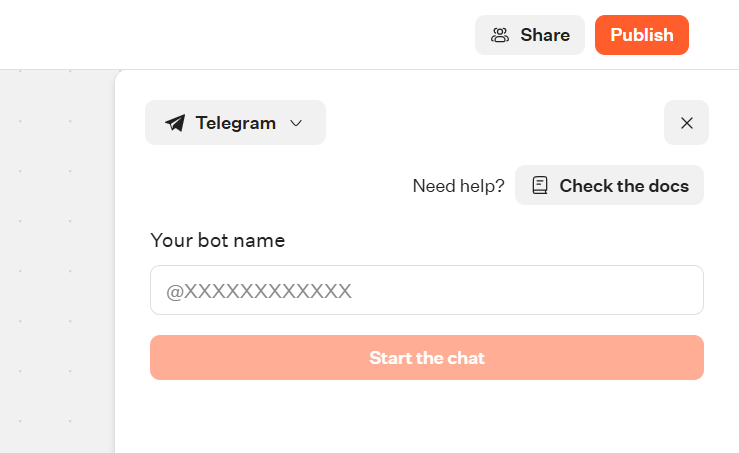
Telegram prohibits sending messages to people who haven’t interacted with the bot before. To resolve this, you can send a message to the bot on Telegram by entering the bot’s name in the input and clicking “start” to redirect.
Limitations
Telegram environment have some limitations that you need to keep in mind when building the bot:- SVG image files are not supported. They won’t be displayed.
- Only .mp4 videos are supported (See Supported Media Types for more info).
- Telegram only allows to display 8 buttons at a time. So we work around that by adding ”…” messages to display more buttons.
- Cards input block can only display 3 buttons per card at a time.
- Buttons content can’t be longer than 20 characters. If the content is longer, it will be truncated.
-
Incompatible blocks, if present, they will be skipped:
- Payment input block
- Chatwoot block
- Script or Set Variable block with
Execute on clientoption enabled - Google Analytics block
- Meta Pixel blocks
- Cal.com block
Contact information
You can automatically assign contact name and phone number to a variable in your bot using a Set variable block with the dedicated system values: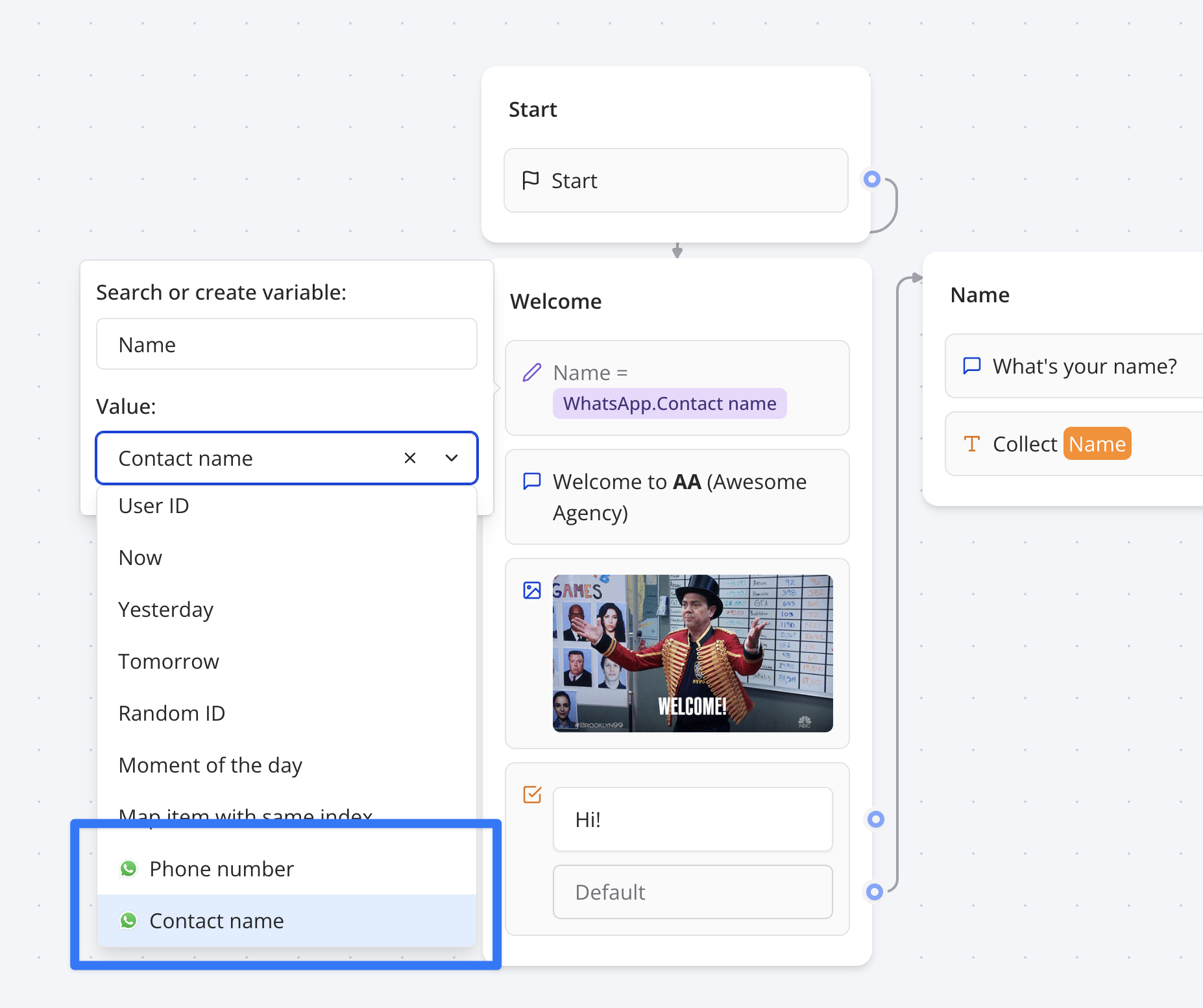
Deploy on your bot name
Head over to the Share tab of your bot and click on the Telegram button to get the integration instructions of your bot.Configuration
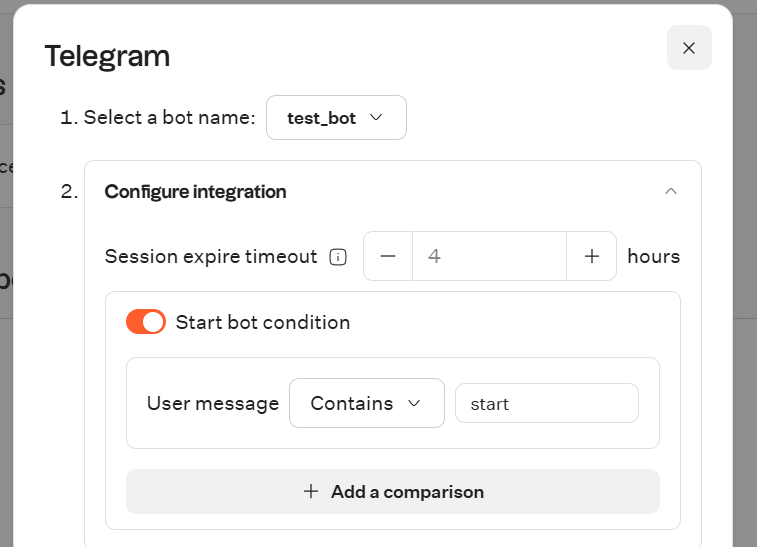
You can customize how your bot behaves on Telegram in theConfigure integration section
FAQ
How many Telegram bots can I use?
How many Telegram bots can I use?
You can integrate as many bots as you’d like. Keep in mind that Typebot
does not provide those bots.
Can I link multiple bots to the same Telegram number?
Can I link multiple bots to the same Telegram number?
Yes, you can. You will have to add a “Start bot condition” to each of your
bots to make sure that the right bot is triggered when a user starts a
conversation.
Does the integration with Telegram requires any paid API?
Does the integration with Telegram requires any paid API?
Telegram bot is totally free to use. Some functions need an Business Subscription to work, refer totheir documentation
Troubleshooting
After publishing the bot on my bot name, it doesn’t reply back
It can happen that you configured your Telegram token, you send the first message to try it out but it never replies back. To troubleshoot this we suggest you to:- Make sure the bot works fine in Test mode
- Make sure the bot name you are using is not already used in Telegram app.
- Delete the bot name configuration on Typebot and configure it again while making sure you read all the instructions thoroughly.
- Make sure you don’t have any Start conditions or that your first message is matching the condition